sudo nano Makefile
# board tag is very import put your board name and model no
BOARD_TAG = mega2560
ARDUINO_PORT = /dev/ttyACM0
ARDUINO_DIR = /usr/share/arduino
include /usr/share/arduino/Arduino.mk
make
make upload
It will prepare the c and bit files and burn the memory on your Arduino. Watch your LED blinks.
Other commands to perform various tasks:
make – no upload
make upload – compile and upload
make clean – remove all our dependencies
make depends – update dependencies
make reset – reset the Arduino by tickling DTR on the serial port
make raw_upload – upload without first resetting
make show_boards – list all the boards defined in boards.txt (11431)
1. Frist install arduino into your machine. After installation done open arduino IDE.
2. Create new file in arduino IDE. Let's we make blink program into arduino.
3. Save file and connect your arduino micro controller with machine.
4. Select board Tools > Board > Select Arduino board
5. Upload program check IDE bottom it will show your program upload successfully or error in your program.
I was trying to install the latest version of git from the Ubuntu Git Maintainers Team and I needed to add a Personal Package Archive (PPA) to the Software Sources. But when I tried to do this, I got an error:
Solution: Install the software-properties-common Package
To get the add-apt-repository command, install the software-properties-common package. For my Ubuntu version (precise), I also had to install the python-software-properties package:
Boot into Raspian and log in (Username. pi, Password. raspberry), this will all be command line stuff, so no need to log in to the GUI if X isn’t started automatically.
Have a pen and paper at the ready! . . .
First, we need to list the network interface we currently have available:
cat /etc/network/interfaces
The line . . . .
iface eth0 inet dhcp
Implies that we’re currently getting the IP address via DHCP, meaning it’s being dynamically registered by the router. This is what we need to change!
Gathering Network Information:
Fist of all we need to retrieve some information from our router and the Raspberry Pi. First we need to run the following command to retrieve the first part of the information.
ifconfig
This reveals your router information, the bit you want is after eth0 (the ethernet connection). . . .
We need a little more information before we proceed, so run the following command.
netstat -nr
We need:
‘Gateway’ Address – 10.0.0.138
‘Destination’ Address – 10.0.0.0
Editing Network Configuration:
We now need to plug this information into the Raspberry Pi’s network configuration file using a text editor. For this use the nano text editor as follows. . .
sudo nano /etc/network/interfaces
Simply change the line that reads:
iface eth0 inet dhcp
to
iface eth0 inet static
Then directly below this line enter the following (Please Note. You will need your own addresses we gathered in Part B, more details below). . . .
address – The address you want to give your Pi, this can be any IP in the network range, but it’s usually advisable to go higher rather than lower, or you could end up logging different devices to the same IP! I’ve selected 10.0.0.11, as address (denoted by ‘inet addr‘), but this can be any IP address from the range10.0.0.1 to 10.0.0.255.
netmask – The ‘Mask‘ address we wrote down earlier.
network – The router IP address, this is the ‘Destination‘ Address was found earlier. You can also grab this off your router, it will say on the side somewhere.
broadcast – The ‘Bcast‘ address we wrote down earlier.
gateway – This is the ‘Gateway‘ address we found earlier.
So, it should look something like the above, but with your values!
Note that in the above example I also set the Wi-Fi IP to the same as the Ethernet for simplicity as this Raspberry Pi runs my BrickPi Interface Board normally.
Remember to save before exit, CTRL+X (exit) then yes to save changes!
Check the New Static IP Configuration:
We will now need to reboot the Raspberry Pi for the changes to take effect.
sudo reboot
Log back into the Raspberry Pi and run
ifconfig
Your new Network Setting be should revealed.
To double checks all is working as it should, ping your ‘Gateway‘ Address. . .
ping 10.0.0.11 -c 10
(the -c 10 command simply denotes that you want to ping it 10 times, if you forget to add this, it will ping the address continuously. To stop it press CTRL+C)
In this tutorial, I will walk you through the process of installing an LCD touchscreen on the Raspberry Pi, step by step. Many LCD touchscreens for the Raspberry Pi include an image file that you can write to your SD card and get up and running pretty quickly. But what if you want to run a clean version of Raspbian, without all the bloatware included on the manufacturer’s image? Also, what if you want to install a different OS such as Rasbmc or XBMC? In these cases, you should follow this tutorial and go through the steps to configure it on your own. This works on the Raspberry Pi 2 Model B as well as older versions of the Raspberry Pi. Don’t worry, it’s not that hard!
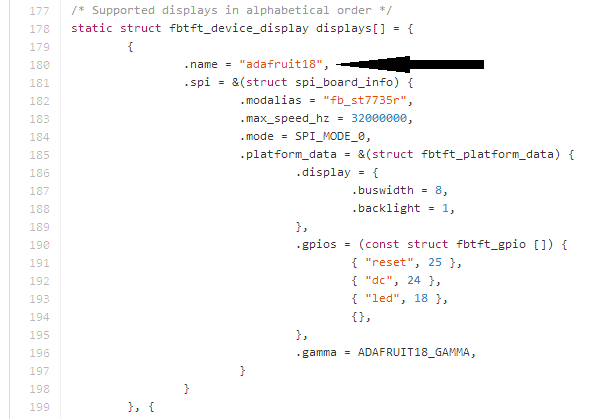
I am using the Waveshare 3.2″ TFT (thin-film transistor) LCD. Many other LCD screens are supported by this process, but check here to see if your screen is supported by the FBTFT driver to make sure. Scroll down the file and look for an abbreviated name of the screen you are using:
What we need to do to get the LCD working is install and configure the FBTFT drivers created by notro. There are two types of drivers we need to be concerned with here. One set of drivers is for the actual LCD display screen, and the other set of drivers is for the touchscreen sensors. Here is a good article explaining Linux kernel modules, devices, and drivers, which you may want to read for some background information. The standard version of Raspbian does not include the drivers for LCD touchscreens, so we will need to install and configure them manually. So just follow the steps below to get your LCD touch screen working on the Raspberry Pi.
Watch the video tutorial for a quick overview of the steps:
Touchscreen Setup and Configuration
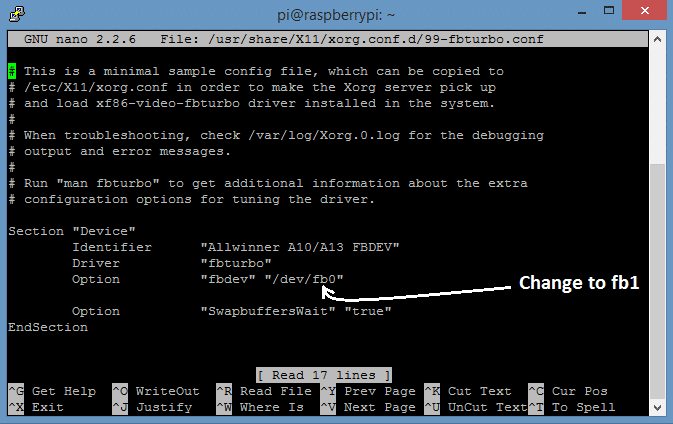
1. First we need to configure the fbturbo video driver to output the display of the Raspberry Pi to the SPI bus instead of the HDMI bus. At the command prompt, enter: sudo nano /usr/share/X11/xorg.conf.d/99-fbturbo.conf
In this file, find the line that says: Option “fbdev” “/dev/fb0″ and change the fb0 to fb1:
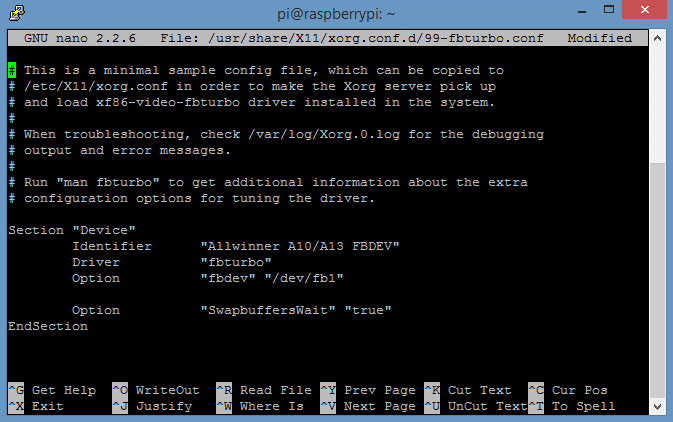
The fb0 option tells the video driver to output to HDMI, and the fb1 option tells it to output to the LCD screen. The file should now look like this:
Press Ctrl-X then Y to exit nano and save the changes.
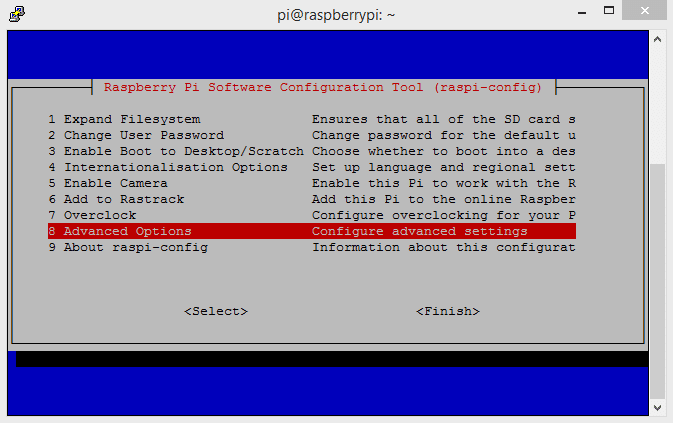
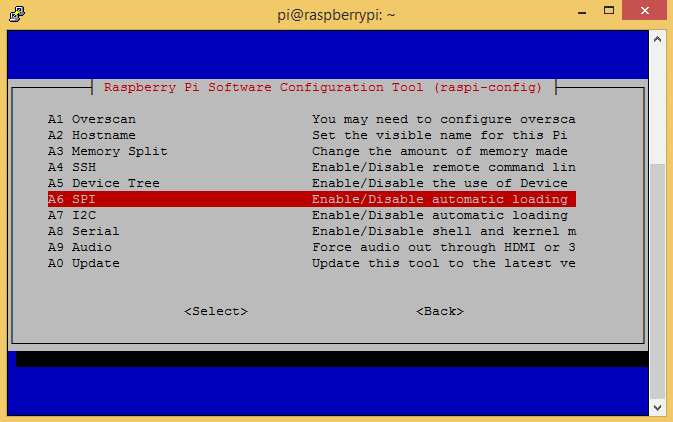
2. The touchscreen uses SPI (serial peripheral interface) to communicate to the main processor. By default, SPI communication is disabled. If you are using the Raspberry Pi 2 Model B, or a version of Raspbian released after 1-31-2015, this can be done in the raspi-config menu. Enter sudo raspi-config at the command prompt to enter the configuration menu, then find the “Advanced Options” line:
Click enter here to see the Advanced Options, then find the line that says “SPI ENABLE/DISABLE AUTOMATIC LOADING“:
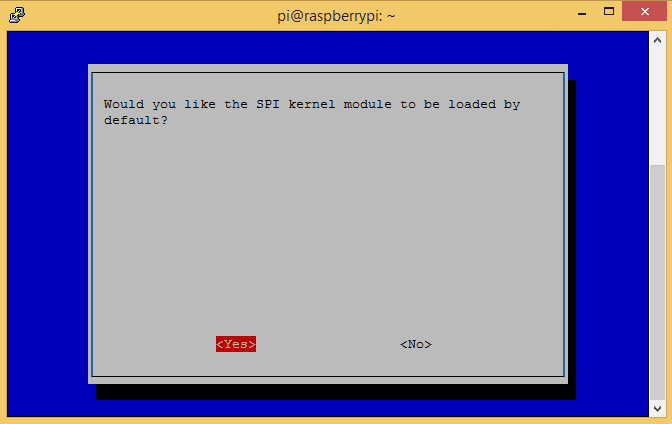
Click enter here:
Then enter again for “yes”. Now exit the configuration menu and enter sudo reboot at the command prompt. You can skip to step 3 now.
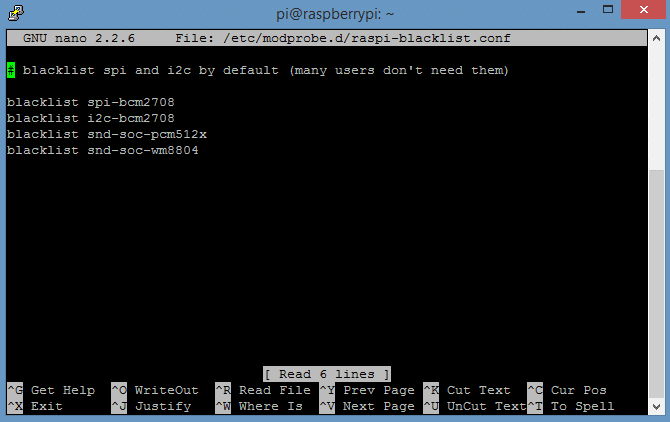
If you are using a version of Raspbian that was released before 1-31-2015, we need to enable SPI it by removing the entry from the blacklist file. Enter sudo nano /etc/modprobe.d/raspi-blacklist.conf at the command prompt to edit the file:
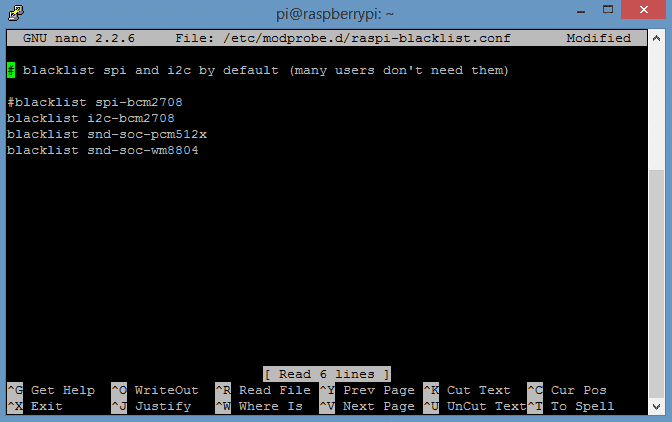
We need to remove the spi-bcm2708 driver from the blacklist by “commenting out” the line that says:blacklist spi-bcm2708. Placing a “#” in front of the line tells the computer to ignore it:
Press Ctrl-X then Y to exit nano and save the changes.
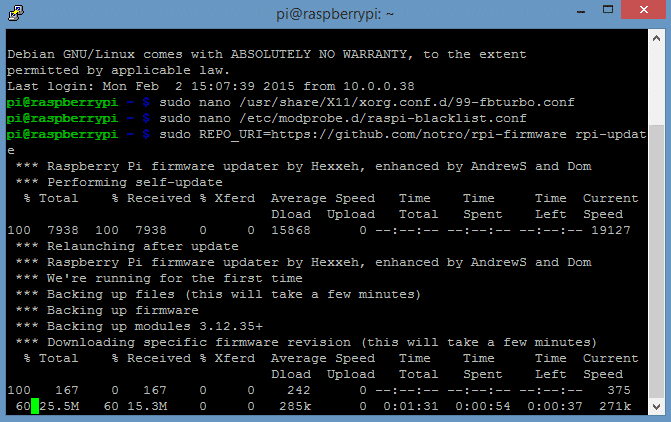
3. Now we can download and install the drivers for the LCD. At the command prompt, enter sudo REPO_URI=https://github.com/notro/rpi-firmware rpi-update. This will download and install the drivers and kernel modules that are needed to run the LCD touchscreen. The download is about 47.2 MB:
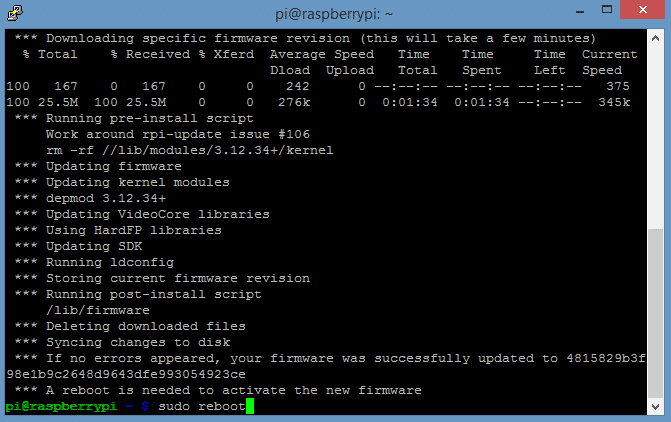
After the drivers have downloaded and installed, a reboot is necessary, so enter sudo reboot or sudo poweroff:
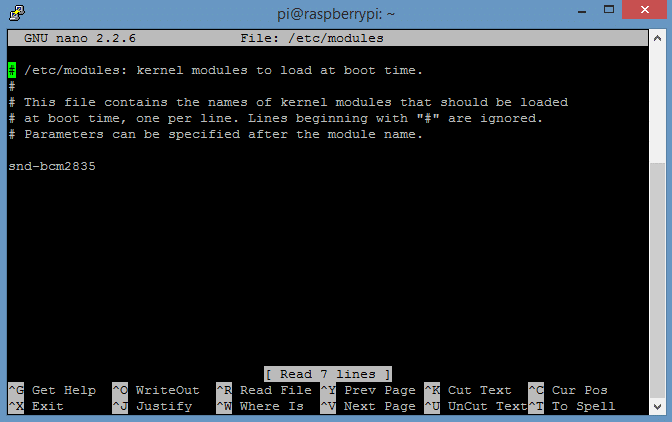
4. After booting up and logging back in to the Raspberry Pi, we will need to configure the kernel modules for the LCD and the touchscreen. To configure these kernel modules, we need to edit the /etc/modules file. At the command prompt, enter sudo nano /etc/modules:
The first term of each line in this file is the name of a kernel module that will be loaded automatically at boot time. The terms after the name of the kernel module on each line are called parameters, and parameters can be changed to adjust the properties of each kernel module.
Currently, the only module that is set to load automatically is snd-bcm2835, which is the module for the Raspberry Pi’s Broadcom processor.
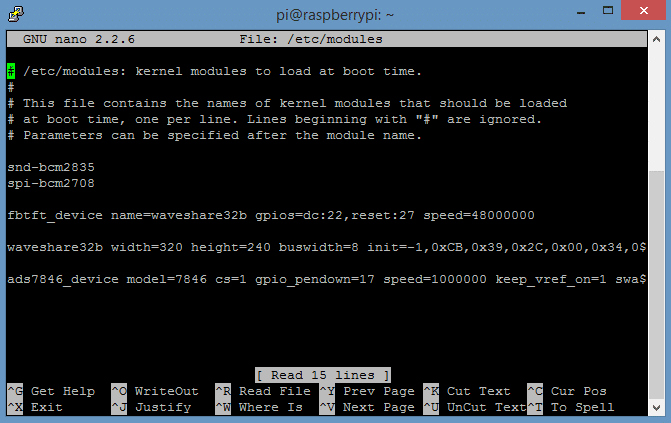
Add this code below the snd-bcm2835 line to support the fbtft_device and ads7846_device modules:
Note: Line 6 is long so make sure you get everything, and use cut/paste to avoid typos. The file should look something like this now:
The kernel module for the LCD screen is calledfbtft_device and the kernel module for the touchscreen is calledads7846_device.ads7846 is the name of the touchscreen controller chip used in the Waveshare 3.2″ LCD and many other touchscreen displays.
If you are not using the Waveshare 3.2″ Touchscreen LCD, first find the fbtft_device name of your device by checking here. Next, on the line that begins withfbtft_device, change the termname=waveshare32b toname=YOUR DEVICE NAME. Now, on the next line that begins with waveshare32b, change the waveshare32b term to your own device name, for example adafruit28, or sainsmart32_spi.
Press Ctrl-X then Y to exit nano and save the changes.
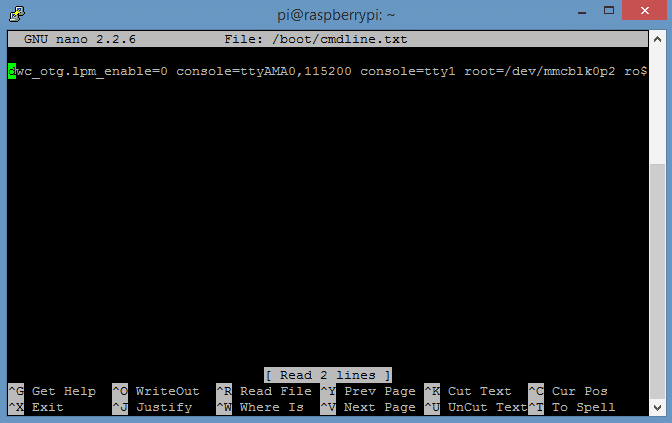
5. Now we need to edit the /boot/cmdline.txt file which contains all of the settings used to configure the system when it boots up. This file is read by the GPU (graphics processing unit), before it is read by the CPU (central processing unit) and the Linux OS. It is equivalent to BIOS in other systems, and contains lots of useful optionsfor configuring your system at boot time. To edit this file, enter sudo nano /boot/cmdline.txt at the command prompt.
Replace the code in this file with this code, entered in one single line:
Note: This line is really long, so make sure you get everything, and copy/paste to avoid typos.
Similarly to what was done in step 4 above, if you are not using the Waveshare 3.2″ Touchscreen LCD, first find the fbtft_device name of your device by checking here. Then replacefbtft_device.name=waveshare32b in the code above withfbtft_device.name=YOUR DEVICE NAME.
Press Ctrl-X then Y to exit nano and save the changes.
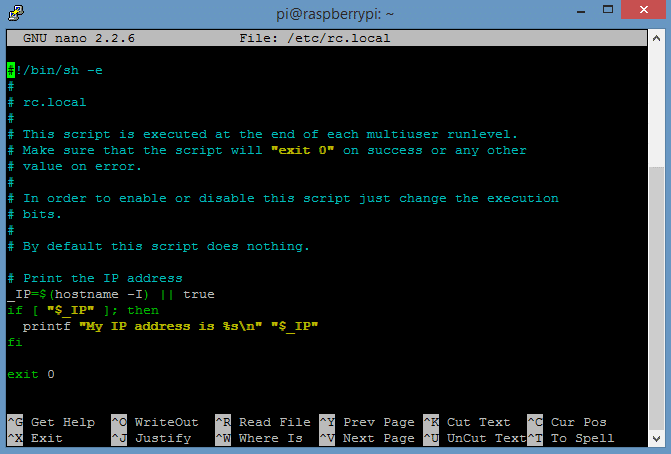
6. The final step is to setup the Pi to load startx automatically and boot to the GUI. If you would rather boot to the command prompt, just skip this step. Enter sudo nano /etc/rc.local at the command prompt:
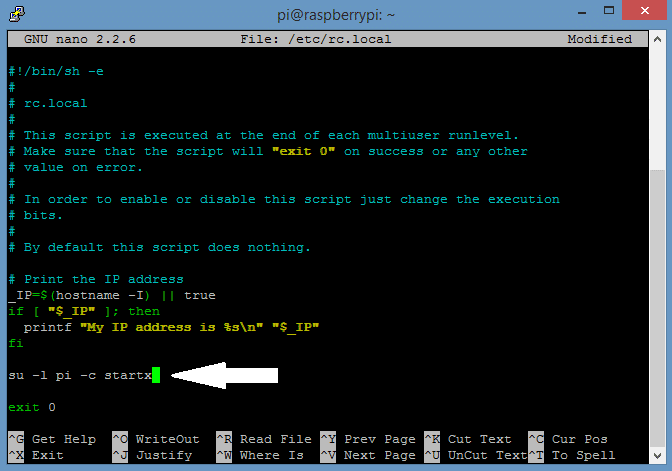
Now add su -l pi -c startx above the line that says exit 0:
Press Ctrl-X then Y to exit nano and save the changes.
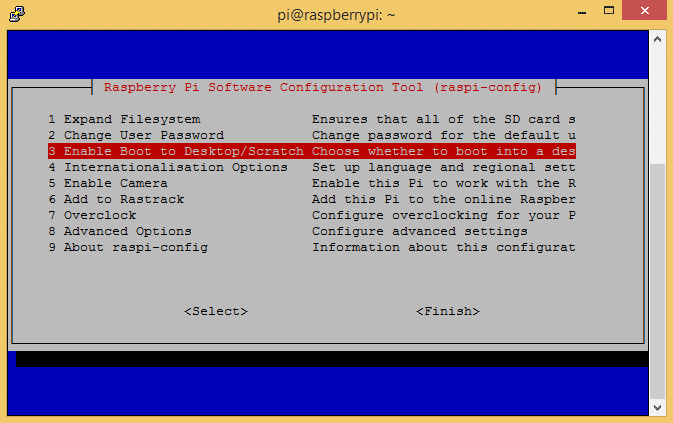
If you are using the Raspberry Pi 2 Model B, the next step is to set the system to boot to the desktop GUI in the raspi-config menu. If you are using versions of Raspbian earlier than 1-31-15 on the Model B+, you can skip this part.
At the command prompt, entersudo raspi-config.
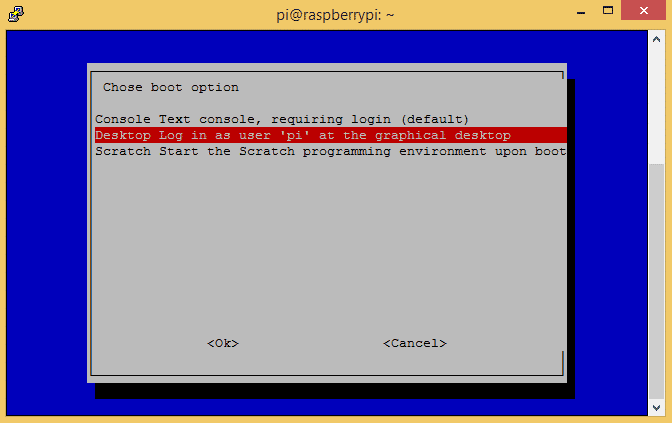
Select the line that saysEnable Boot to Desktop/Scratch, and press enter.
Select the line that saysDesktop Log in as user “pi” at the graphical desktop, and press enter.Now exit the raspi-config menu.
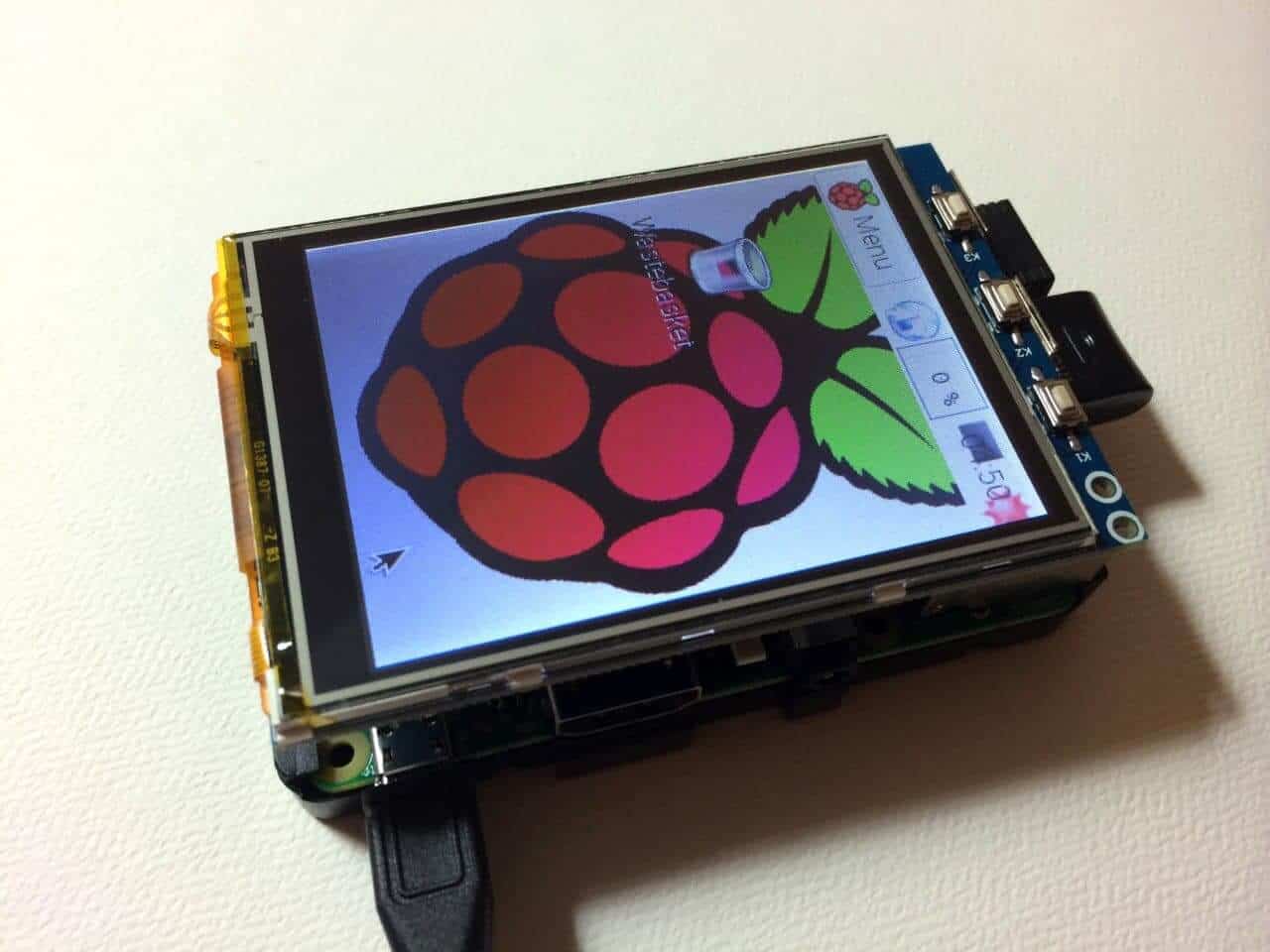
At the command prompt, enter sudo reboot, and after the Pi boots up the GUI should appear on the LCD screen:
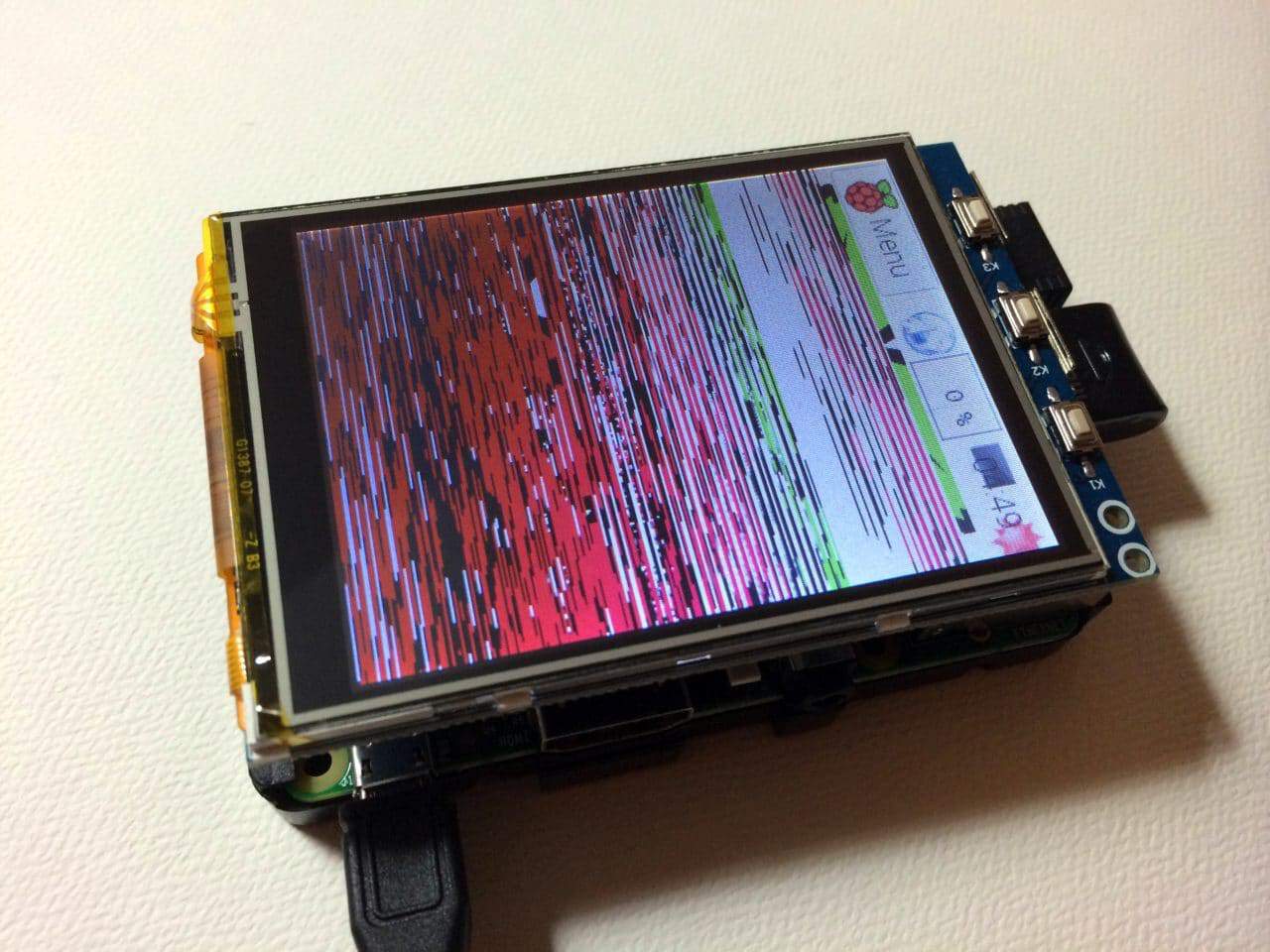
If your screen looks like this:
It is probably due to your Pi being overclocked at turbo speed or Pi2 speed. Try the high setting or lower to fix this.
There have been some issues with the FBTFT drivers when using sudo update and sudo upgrade. Some people have reported that after updating and upgrading, the LCD touchscreen stops working. This seems to be caused by the Raspberry Pi bootloader package overwriting the FBTFT kernel and modules during the update/upgrade install. To prevent this from happening, update and upgrade by:
1. Updating all packages except for the Raspberry Pi bootloader by entering this at the command prompt:
1

2

3

4


sudo apt-mark hold raspberrypi-bootloader

sudo apt-get update

sudo apt-get upgrade
2. Then, updating the Raspberry Pi bootloader independently by entering this at the command prompt:
1

2

3


sudo apt-get install rpi-update

sudo SKIP_KERNEL=1 rpi-update
If your drivers have been accidentally overwritten, they can be restored without having to go through the entire installation process again. Just enter this at the command prompt: